Global Colors
Global color variables allow users to manage a project's color scheme efficiently. By defining colors as variables, they can be updated in one place, applying the changes automatically across the entire user interface. This guide explains how to create and manage global colors using the Variable Manager and Color Picker.
Managing Variables and Themes
Accessing the Variable Manager
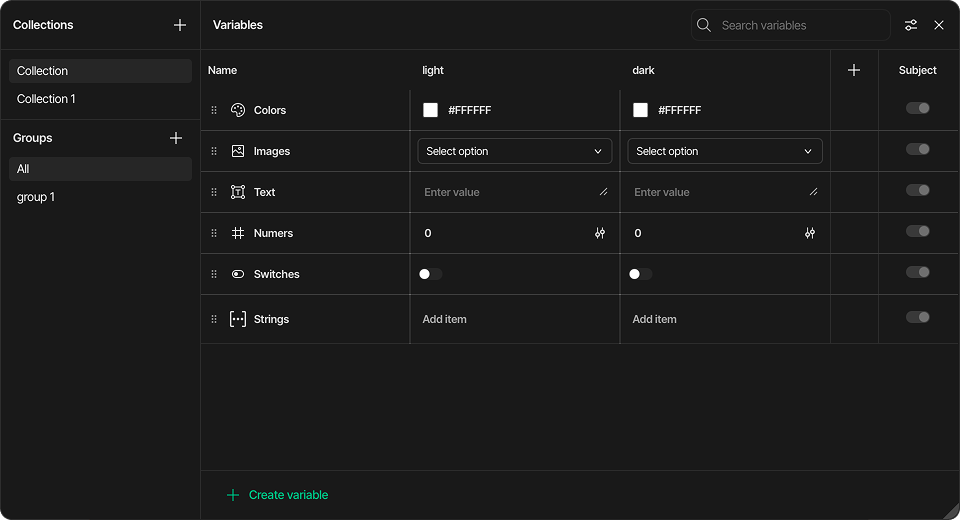
The Variable Manager is located in the Inspector panel. Upon opening it for the first time, the list will be empty, as all element colors are initially set manually.
Creating and Naming a Color Variable
-
In the Variable Manager, click the Create variable button.
-
A new color variable is created and assigned to the first theme.
-
Give the variable an identifiable name, such as
Primary,Accent, orBackground. The theme can also be named to better organize designs. -
Assign a solid or gradient value to the color.Variables can be added to a theme as needed and modify their values at any point during the design process.
Adding a New Theme
Multiple themes can be created for a project.
-
Click the Add new theme button.
-
A new theme is created, and the system automatically copies all existing color variables from the previous theme.
-
New color values can now be assigned to these variables, which will be specific to the new theme.
Applying and Editing Colors Using the Color Picker
How to Select a Color
Colors can be defined using the following methods:
-
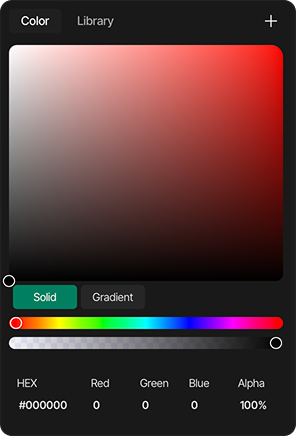
Select a Hue: Click and drag the circular handle on the hue slider (the top rainbow-colored bar) to choose the base color.
-
Adjust Saturation & Brightness: Move the selector within the large square color field to fine-tune the color's saturation (left to right) and brightness (bottom to top).
-
Set Transparency: Use the bottom slider to control the alpha (transparency) of the color. A checkerboard pattern indicates the level of transparency.
-
Enter Precise Values: For exact color codes, values can be manually typed into the HEX, Red, Green, Blue, and Alpha input fields at the bottom.
Solid and Gradient Modes
The Color Picker offers two distinct color modes that can be toggled using the buttons provided:
-
Solid: This is the default mode, used for selecting a single, uniform color.
-
Gradient: By selecting this mode, a smooth color transition can be created between two or more color stops. Each stop can be selected and customized individually using the same selection methods.
A global color variable can be assigned to any element that has a color parameter in its style settings (e.g., Background Color).
-
In the style settings, open the color selector.
-
Click the Add Global Variable button to open the library of your defined color variables.
-
Select the desired variable to apply it.
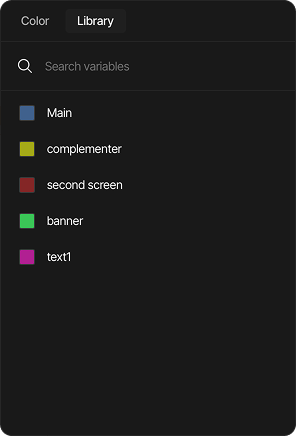
Variables can also be managed directly from the Color Picker library:
-
Edit a variable: Click the Edit button next to a variable to change its name and color value. Click OK to save or X to cancel.
-
Create a new variable: In the Color tab, click the Plus (+) button, give the new variable a name, and click OK to save.
Switching Themes
After configuring themes and assigning color variables to elements, users can easily switch between them. This allows the UI's appearance with different themes to be previewed in real-time, directly within the editor, making it easy to fine-tune your color choices instantly.
Bonus Tip
A theme change can also be triggered by an event. Simply add a new Event to an element (like a button) and select the Switch Theme action from the Actions list. This allows the entire UI's theme to be changed dynamically.
Summary
Global color variables help you modify the colors of a
entire interface quickly and consistently. There's no more need to manually find and replace colors; simply update the variable's value, and the change is applied everywhere automatically.