Workspace
The Workspace functionality provides a comprehensive system for managing user access and collaboration within your projects. Users first have to be invited as a member in the Members menu, and once they accepted the member invite, they can be invited to a workspace, to access projects based on their assigned permissions.
Workspace types
there are three different types of workspace available in Squareline Vision:
- Basic
- Extra
- Pro
| Feature | Basic | Extra | Pro |
|---|---|---|---|
| Price | $190 | $290 | $490 |
| Members max | 5 | 15 | 50 |
| Project max | 10 | 20 | 30 |
Creating a workspace
-
Navigate to the workspace section in the Account settings menu
-
Click on the "Create new" button in the top-right corner
-
Select the workspace plan (Basic, Extra, Pro)
-
Proceed with the payment
-
After successful payment, the purchased workspaces are automatically activated in the workspace menu and become immediately available, also you will recieve an email confirmation.
Sending invitations
-
If the user is not already a member, first send an invite in the the Members menu.
-
Click on the "Add member" button
-
From the "Add member" modal, select the member that you want to add to the workspace.
-
Than select the role of the member, (Admin, Can edit, Can view)
-
Click on the "add member button"
Managing workspace members
After adding members to the workspace, they will appear in a list, with their account name, e-mail address, and role.
You can manage workspace members, including editing their role, and removing them from the workspace, with clicking on the dropdown with their roles.

Permission management
You can assign different permission levels to users for each project:
- For registered & active Users
- Admin: Can make changes to the project, and manage the workspace
- Can view: Can view a project, but cannot edit it.
- Can edit: Can make changes to the project
- Remove: Revoke access to a specific project (if previously added)
- User self-management
- Leave: Users can choose to leave a project they've been added to
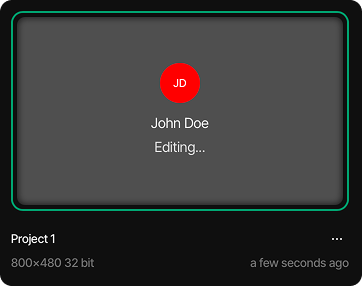
Opening a project while another workspace member is editing
If a user wants to edit a project while another user is already in it, they have the option to either view the other user's session or kick the other user from the project to start their session immediately.
If a user want to edit the project while another user is already in the project, there are options to either view the other users session, or kick the other user from the project to start the session imediately.
-
To kick the user editing the project: Click on the three-dot button, and from the list, click the Kick button.
-
To view the editor's session: Click on the three-dot button, and from the list, click the View project button.