Menu
The menu expands when hovering over the logo in the top-left corner of the toolbar. It looks like this:
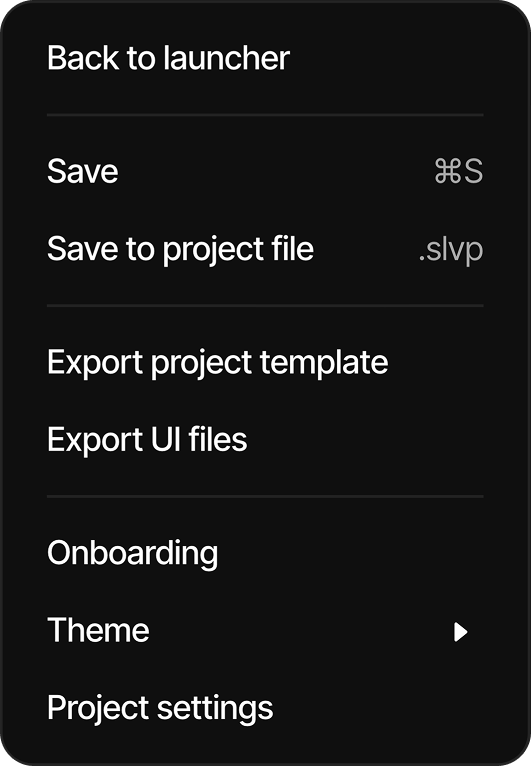
Contains the following elements:
-
Back to launcher - Returns to the project selection screen, allowing users to access other projects or create new ones
-
Save (⌘S) - Saves the current state of the project with keyboard shortcut support
-
Save to project file (.slvp) - Exports the complete project as an .slvp file
-
Export - Opens the Export dialog, which generates the LVGL code of the project either as a full Project template or as UI files only. See Export for details
-
Onboarding - A tour of the key features of SquareLine Vision.
-
Theme - Allows switching between the light and dark themes.
-
Project Settings - The Project Settings section is divided into categories (Project, Board, Display and, in the desktop application, Export) that control different aspects of the embedded UI project
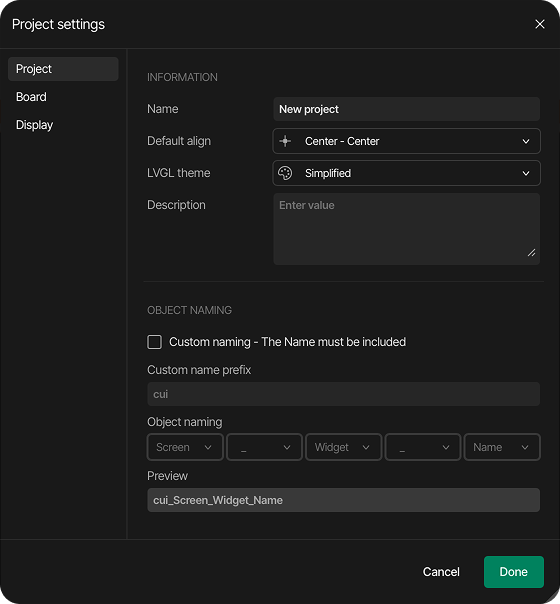
Project settings
-
Project
Information
- Name - Sets the title of the project
- Default align - Sets the default alignment for the created widgets.
- LVGL theme - Provides the option to switch between the built-in LVGL themes.
- Description - Optional field for documenting project details and purpose
Object naming
-
Custom naming - The Name must be included - Enables customized naming conventions for UI assets and elements, ensuring the unique object identifier is always preserved within the generated output.
-
Custom name prefix - Allows you to input a global text prefix (such as
cui) that automatically prepends to all object variable names. -
Object naming - Configures the structural pattern of the code export names by organizing variables (such as Screen, Widget, or Name) and layout separators into a specific hierarchy using sequential dropdown menus.
-
Preview - Displays a real-time mockup string demonstrating what the finalized variable output will look like based on your custom prefix and block choices.
-
Conflicts - If the chosen pattern produces names that are not unique, the settings cannot be saved and the Object naming conflicts dialog lists the affected elements, styles, events, animations or variables. The export is also blocked until the conflicts are resolved by renaming the objects or changing the pattern.
-
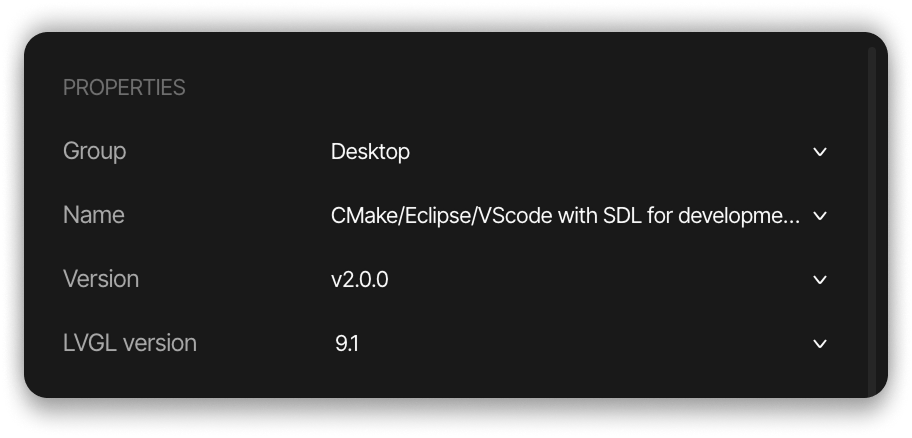
Board
- Group - Selects the target device category
- Name - Specifies the development environment
- Version - Sets the software version (e.g., v2.0.0)
- LVGL version - Defines the Light and Versatile Graphics Library version
- Language - Selects the programming language
- Resolution - Shows the default screen resolution
- Color depth - Sets the color capability
-
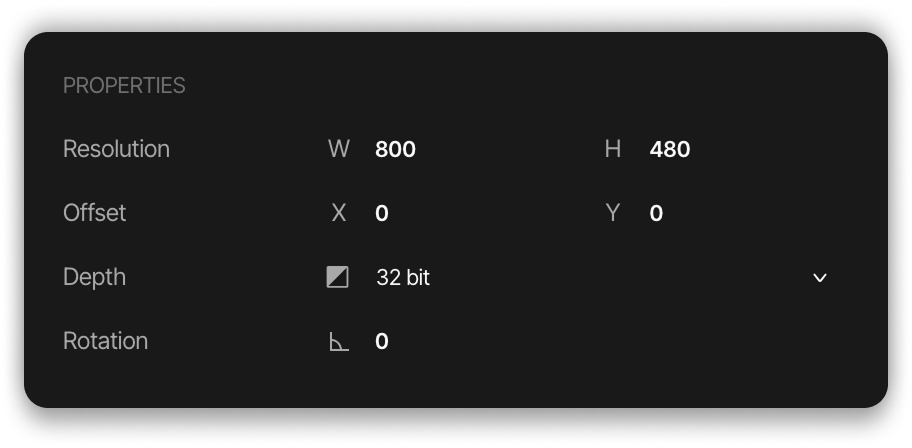
Display
- Default resolution - Configures the width (W: 800) and height (H: 480) of the display in pixels, and the X and Y offset values (both 0 in example)
- Add new resolution - Adds a further resolution to the project. Every additional resolution (Resolution 2, Resolution 3, ...) has its own size and offset fields and a Remove resolution button. See Multiple resolutions
- Properties
- Depth - Selects color bit depth (32 bit)
- Rotation - Defines screen orientation in degrees (0, 90, 180, 270). Switching between landscape and portrait swaps the width and height of the active resolution
-
Export (desktop application only)
- Project export root - The folder where the Project template export is extracted. A subfolder named after the project is created in it
- UI Files export path - The folder where the UI files export is extracted
- Browse - Selects the folder in the file system