Licenses
In the Licenses section, you can manage your purchased licenses. You can see the license type, start and end dates, and whether the license is attached to a computer. You can also buy new licenses or upgrade existing ones here.
SquareLine Vision offers a variety of license options to meet different development needs, from individual creators to business teams. This document outlines the available license tiers and their associated limitations.
Plans
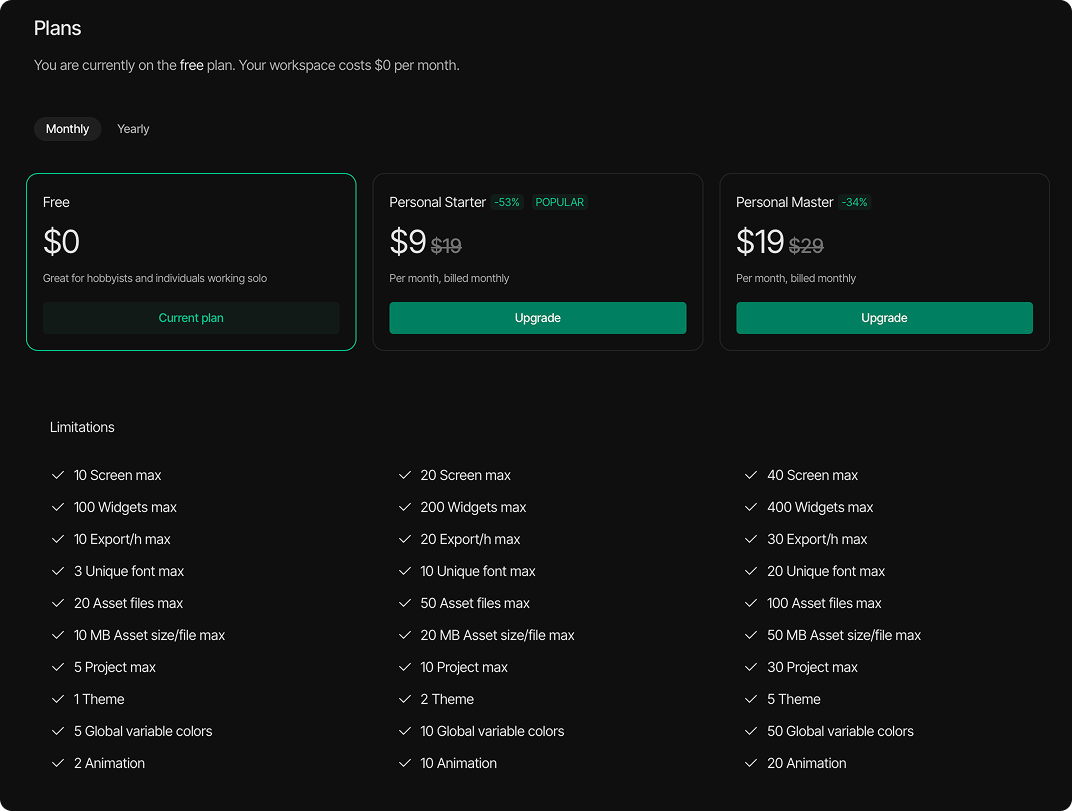
There are currently three Personal License options available for SquareLine Studio.
- Free
- Personal starter
- Personal master
Personal licenses
| Feature | Free | Starter | Master |
|---|---|---|---|
| Price | Free | $9 | $19 |
| Screens max | 10 | 20 | 40 |
| Widgets max | 100 | 200 | 400 |
| Export/h max | 10 | 20 | 30 |
| Asset files max | 20 | 50 | 100 |
| Assets max (MB) | 10 | 20 | 50 |
| Projects max | 5 | 10 | 30 |
| Unique font max | 3 | 10 | 20 |
| Themes/pcs | 1 | 2 | 5 |
| Global variable colors | 5 | 10 | 50 |
| Animation max | 2 | 10 | 20 |
Licenses
- License type: Shows which plan you have - can be Free, Starter, Master.
- License ID: The unique identifier for each of your licenses
- Start date: When your license became active
- End date: When your license will expire
- Cancel subscription: Deletes the subscription, but your access remains active until the end of your current billing period
- Buy licenses: Allows you to purchase additional licenses

Invoices
The Invoices page provides a comprehensive financial record center where you can track and manage all payments related to your licenses.
Features
This section allows you to:
- Review your complete payment history
- Track monthly or annual payments for your licenses
- Access payment details and transaction records
- Download invoice documentation for accounting purposes
Invoice list
Each invoice entry in the list contains essential information:
- Unique invoice identifier number
- License ID
- License type
- Invoice date
- Price
- Download button to save invoices for your records

Steps of buying license
-
Click on the Explore plans button
- Clicking on the "Explore plans" button forwards you to the available plans.
-
Select the desired plan
- The plan list appears where the user can choose from multiple licence options.
-
Click on upgrade button
- By clicking the "Upgrade" button, the user proceeds to the payment process.
- Payment summary page
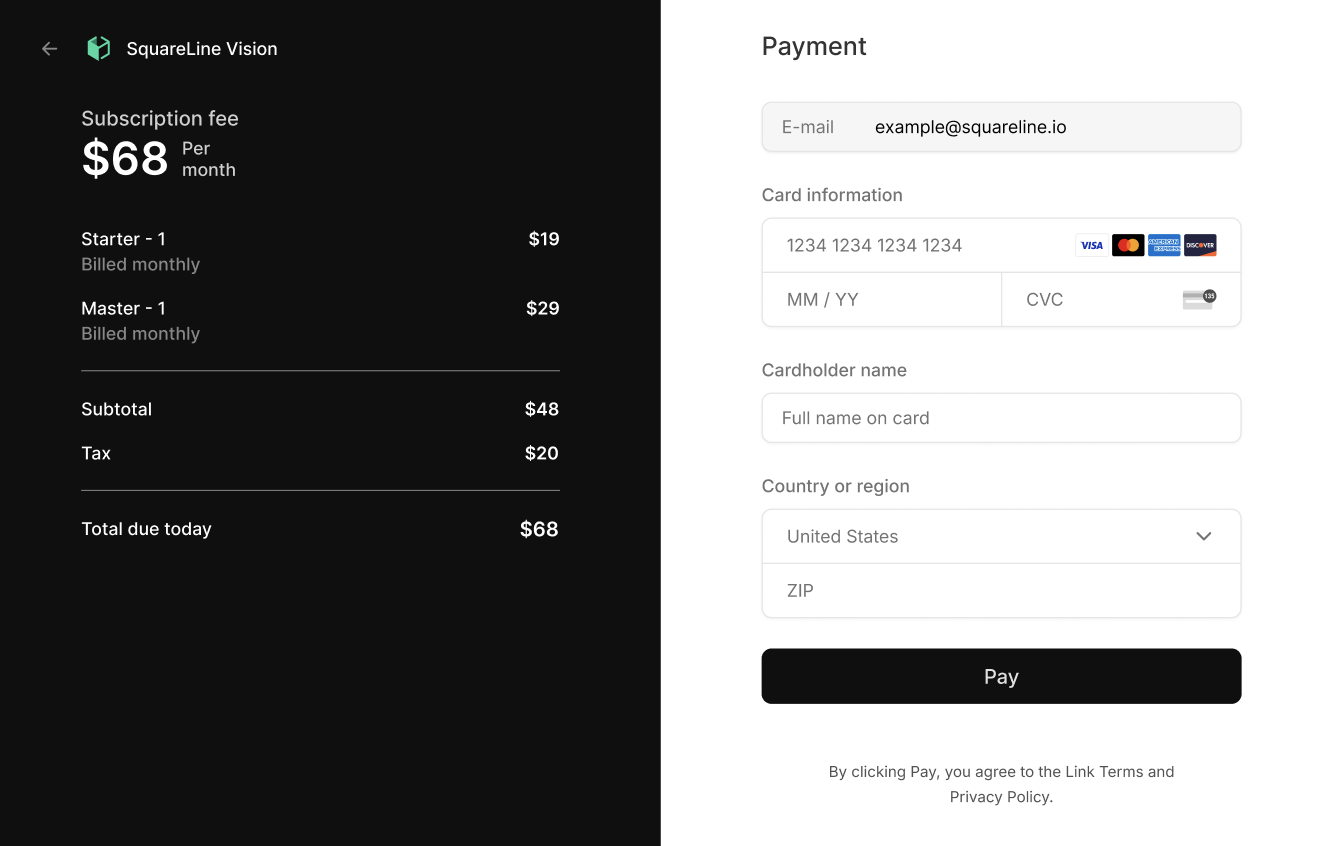
- On the payment page, the user sees a detailed summary:
- The total subscription fee
- Breakdown of each selected package
- The subtotal
- The tax
- The total amount due today
2. Fill in Payment details
-
The user completes the necessary payment information:
- Email address
- Credit card details (card number, expiration date, security code)
- Cardholder name
- Country/region
- ZIP code
3. Stripe Payment
- Payment completion is processed through Stripe's secure payment system. Stripe is a reliable, internationally recognized online payment platform that guarantees transaction security and data protection.
- Confirmation and Terms of Service
- By clicking the "Pay" button, the user accepts Link's terms and privacy policy and finalizes the payment.
- License activation
- After successful payment, the purchased license(s) are automatically activated in the user's account and become immediately available.
- Email confirmation
- The user receives an email confirmation of the purchase, containing the order details and billing information.